Tracking Changes
Learn the essential Git workflow of making changes, staging files, and creating commits. Use the modify-add-commit cycle and understand how Git manages file states through the staging area.
This tutorial modifies content from Jenna Jordan’s Intro to Git & GitHub (Speedrun edition), which draws from the Software Carpentry Version Control with Git lesson, the Carpentries Incubator Version Control with Git lesson, and the Library Carpentry Introduction to Git lesson. Copyright (c) The Carpentries. The original material is licensed under the Creative Commons Attribution 4.0 International License (CC BY 4.0).
Changes made: Content has been modified and expanded by Innovations for Poverty Action (IPA) to include IPA-specific examples.
- Go through the modify-add-commit cycle for one or more files
- Explain where information is stored at each stage of that cycle
- Distinguish between descriptive and non-descriptive commit messages
Simon Bolivar documents the liberation campaigns
Simon Bolivar, historian and documenter of South American independence movements, needs to track the many events across the liberation campaigns. Even for a dedicated historian, keeping accurate records of campaigns across multiple territories presents challenges. Fortunately, there is a tool that can help track these historical records across different interpretations and sources: git! Simon has decided to start logging events in a git repository named multiverse. Each major campaign will have its own file. Simon starts recording the liberation campaigns, beginning with the campaign to free Caracas.
Create a file
First let’s make sure we’re in the right directory. You should be in the multiverse directory.
pwdLet’s create a file called campaigns.txt to start recording the liberation campaigns.
Make sure you have the Explorer pane open in VS Code, and click the “New File” button. Name the file campaigns.txt.
Type the text below into the campaigns.txt file:
Bolivar leads forces to liberate Caracas from Spanish control.
Make sure to end the file with a newline!
Save the file.
Track Changes to the File
If we check the status of our project again, Git tells us that it’s noticed the new file:
git statusOn branch main
Your branch is up to date with 'origin/main'.
Untracked files:
(use "git add <file>..." to include in what will be committed)
campaigns.txt
nothing added to commit but untracked files present (use "git add" to track)The “untracked files” message means that there’s a file in the directory that Git isn’t keeping track of. We can tell Git to track a file using git add:
git add campaigns.txtand then check that the right thing happened:
git statusOn branch main
Your branch is up to date with 'origin/main'.
Changes to be committed:
(use "git restore --staged <file>..." to unstage)
new file: campaigns.txtGit now knows that it’s supposed to keep track of campaigns.txt, but it hasn’t recorded these changes as a commit yet. To get it to do that, we need to run one more command:
git commit -m "Document liberation of Caracas"[main 9b26458] Document liberation of Caracas
1 file changed, 1 insertion(+)
create mode 100644 campaigns.txtWhen we run git commit, Git takes everything we have told it to save by using git add and stores a copy permanently inside the special .git directory. This permanent copy is called a commit (or revision) and its short identifier is 9b26458 (Your commit will have another identifier.)
We use the -m flag (for “message”) to record a short, descriptive, and specific comment that will help us remember later on what we did and why. If we just run git commit without the -m option, Git will launch a VS Code window (or whatever other editor we configured as core.editor) so that we can write a longer message.
Good commit messages start with a brief (<50 characters) summary of changes made in the commit. If you want to go into more detail, add a blank line between the summary line and your additional notes.
If we run git status now:
git statusOn branch main
Your branch is ahead of 'origin/main' by 1 commit.
(use "git push" to publish your local commits)
nothing to commit, working tree cleanIt tells us everything is up to date. If we want to know what we’ve done recently, we can ask Git to show us the project’s history using git log:
git logcommit 9b26458f5d229d48be61023bcb510f8beb3f13db (HEAD -> main)
Author: Simon Bolivar <simon.bolivar@liberation.org>
Date: Sat May 17 20:18:55 2025 -0400
Document liberation of Caracas
commit f537d84c6ef9b6d988f642400b2017f855f9aaa1 (origin/main, origin/HEAD)
Author: Simon Bolivar <simon.bolivar@liberation.org>
Date: Sat May 17 18:34:45 2025 -0400
Initial commitgit log lists all commits made to a repository in reverse chronological order. The listing for each commit includes the commit’s full identifier (which starts with the same characters as the short identifier printed by the git commit command earlier), the commit’s author, when it was created, and the log message Git was given when the commit was created
Make more changes to the file
Now suppose Simon records another campaign event in the file.
Click back into the campaigns.txt file, and add a second line:
Bolivar leads forces to liberate Caracas from Spanish control.
Bolivar and Sucre coordinate the liberation of Quito.
Save the file (make sure to have a newline at the end!).
When we run git status now, it tells us that a file it already knows about has been modified:
git statusOn branch main
Your branch is ahead of 'origin/main' by 1 commit.
(use "git push" to publish your local commits)
Changes not staged for commit:
(use "git add <file>..." to update what will be committed)
(use "git restore <file>..." to discard changes in working directory)
modified: campaigns.txt
no changes added to commit (use "git add" and/or "git commit -a")The last line is the key phrase: “no changes added to commit”. We have changed this file, but we haven’t told Git we will want to save those changes (which we do with git add) nor have we saved them (which we do with git commit). Let’s do that now. It is good practice to always review our changes before saving them. We do this using git diff. This shows us the differences between the current state of the file and the most recently saved version:
git diffdiff --git a/campaigns.txt b/campaigns.txt
index 0b592c6..d27fc77 100644
--- a/campaigns.txt
+++ b/campaigns.txt
@@ -1 +1,2 @@
Bolivar leads forces to liberate Caracas from Spanish control.
+Bolivar and Sucre coordinate the liberation of Quito.The output is cryptic because it is actually a series of commands for tools like editors and patch telling them how to reconstruct one file given the other. If we break it down into pieces:
- The first line tells us that Git is producing output similar to the Unix
diffcommand comparing the old and new versions of the file. - The second line tells exactly which versions of the file Git is comparing;
0b592c6andd27fc77are unique computer-generated labels for those versions. - The third and fourth lines once again show the name of the file being changed.
- The remaining lines are the most interesting, they show us the actual differences and the lines on which they occur. In particular, the
+marker in the first column shows where we added a line.
After reviewing our change, it’s time to commit it:
git commit -m "Add Sucre's coordination in Quito campaign"On branch main
Your branch is ahead of 'origin/main' by 1 commit.
(use "git push" to publish your local commits)
Changes not staged for commit:
(use "git add <file>..." to update what will be committed)
(use "git restore <file>..." to discard changes in working directory)
modified: campaigns.txt
no changes added to commit (use "git add" and/or "git commit -a")Whoops: Git won’t commit because we didn’t use git add first. Let’s fix that:
git add campaigns.txt
git commit -m "Add Sucre's coordination in Quito campaign"
[main ee67c8b] Add Sucre's coordination in Quito campaign
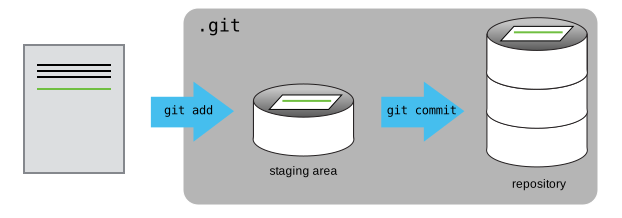
1 file changed, 1 insertion(+)Git insists that we add files to the set we want to commit before actually committing anything. This allows us to commit our changes in stages and capture changes in logical portions rather than only large batches.
To allow for this, Git has a special staging area where it keeps track of things that have been added to the current changeset but not yet committed.
If you think of Git as taking snapshots of changes over the life of a project, git add specifies what will go in a snapshot (putting things in the staging area), and git commit then actually takes the snapshot, and makes a permanent record of it (as a commit). If you don’t have anything staged when you type git commit, Git will prompt you to use git commit -a or git commit --all, which is kind of like gathering everyone for the picture! However, it’s almost always better to explicitly add things to the staging area, because you might commit changes you forgot you made. (Going back to snapshots, you might get the extra with incomplete makeup walking on the stage for the snapshot because you used -a!) Try to stage things manually, or you might find yourself searching for “git undo commit” more than you would like!
Using the Source Control pane in VS Code
Let’s watch as our changes to a file move from our editor to the staging area and into long-term storage. First, we’ll add another line to the file:
Bolivar leads forces to liberate Caracas from Spanish control.
Bolivar and Sucre coordinate the liberation of Quito.
Bolivar establishes Gran Colombia after successful campaign.
Save the file (with a newline at the end!).
Switch from the Explorer pane view to the Source Control pane view in VS Code.
Under “Changes”, you should see your campaigns.txt file. Click the file.
In your Terminal window, type the command:
git diffdiff --git a/campaigns.txt b/campaigns.txt
index d27fc77..8938f14 100644
--- a/campaigns.txt
+++ b/campaigns.txt
@@ -1,2 +1,3 @@
Bolivar leads forces to liberate Caracas from Spanish control.
Bolivar and Sucre coordinate the liberation of Quito.
+Bolivar establishes Gran Colombia after successful campaign.The git diff command is accomplishing the same thing as clicking on the file under “Changes”: that we’ve added one line to the end of the file (shown with a + in the first column).
In the Source Control pane, click the + icon next to the campaigns.txt file. The campaigns.txt file gets moved to the “Saved Changes” section.
Clicking the + icon accomplished the same thing as typing git add campaigns.txt in the terminal.
Now, let’s save our changes. We could use the Terminal to commit our changes:
git commit -m "Record formation of Gran Colombia"[main 2f2d364] Record formation of Gran Colombia
1 file changed, 1 insertion(+)Or, we can type the commit message “Record formation of Gran Colombia” in the “Message” box and click “Commit”.
Let’s check our status:
git statusOn branch main
Your branch is ahead of 'origin/main' by 3 commits.
(use "git push" to publish your local commits)
nothing to commit, working tree cleanand look at the history of what we’ve done so far:
git logcommit 2f2d364f559efb1101647591d9fbf2cc30ade8bb (HEAD -> main)
Author: Simon Bolivar <simon.bolivar@liberation.org>
Date: Sat May 17 20:29:51 2025 -0400
Record formation of Gran Colombia
commit ee67c8b551612e09be46c97726866d04c7b0d785
Author: Simon Bolivar <simon.bolivar@liberation.org>
Date: Sat May 17 20:24:35 2025 -0400
Add Sucre's coordination in Quito campaign
commit 9b26458f5d229d48be61023bcb510f8beb3f13db
Author: Simon Bolivar <simon.bolivar@liberation.org>
Date: Sat May 17 20:18:55 2025 -0400
Document liberation of Caracas
commit f537d84c6ef9b6d988f642400b2017f855f9aaa1 (origin/main, origin/HEAD)
Author: Simon Bolivar <simon.bolivar@liberation.org>
Date: Sat May 17 18:34:45 2025 -0400
Initial commitLook back at the Source Control pane. Where can you see a GUI representation of this log?
git statusshows the status of a repository- Files can be stored in a project’s working directory (which users see), the staging area (where the next commit is being built up) and the local repository (where commits are permanently recorded)
git addputs files in the staging areagit commitsaves the staged content as a new commit in the local repository- Always write a log message when committing changes