uv add jupyterlab pandas matplotlib seaborn causaldataPython
Getting started with Python for data analysis and research, including installation, setup, troubleshooting, and best practices.
Python is a high-level, general-purpose programming language that is widely used in data science, machine learning, and web development. It has a large standard library and a vibrant community that provides a wide range of libraries and tools for various applications. This guide covers Python installation, package management, environment setup, troubleshooting common issues, and best practices for data analysis and research.
How to install Python?
There are many ways to install Python. This guide recommends using Python in a virtual environment to avoid conflicts with other Python installations on your system.
The recommended tool is uv, a simple way to create and manage Python virtual environments.
Installing uv
First, install uv using winget on Windows or brew on MacOS/Linux:
# Install uv
winget install astral-sh.uv
# Install uv
brew install uv# Install uv
brew install uvInstalling Python Packages
You can manage Python packages installed in the virtual environment using a pyproject.toml file. See the pyproject.toml example in this repository for an example of how to manage Python packages.
Choose one of the following methods to install packages:
Add libraries to the virtual environment using uv add:
This will install:
- jupyterlab: Interactive development environment for data science
- pandas: Data manipulation and analysis
- matplotlib: Plotting and visualization library
- seaborn: Statistical data visualization
- causaldata: Example datasets for causal inference
If you prefer pip (Python’s standard package manager):
pip install jupyterlab pandas matplotlib seaborn causaldataIf you use Anaconda or Miniconda:
conda install jupyterlab pandas matplotlib seaborn
pip install causaldata
Note: causaldata is not available in conda channels, so use pip for that package.
Using Virtual Environments
Using a virtual environment keeps your project packages separate and avoids conflicts. For more guidance, see the virtual environment guide.
Create and activate a virtual environment with uv:
# Create virtual environment
uv venv myproject-env

# Activate it
On Windows:
myproject-env\Scripts\activateOn macOS/Linux:
source myproject-env/bin/activateCreate and activate using Python’s built-in venv:
# Create virtual environment
python -m venv myproject-env

# Activate it
On Windows:
myproject-env\Scripts\activateOn macOS/Linux:
source myproject-env/bin/activateFor more details on virtual environments, see the virtual environment guide.
Version Requirements
To ensure compatibility with the examples and tools used throughout this guide, you will need:
- Python: 3.8 or higher
- pandas: 1.3 or higher
- seaborn: 0.12 or higher (required for seaborn.objects interface)
- matplotlib: 3.4 or higher
- numpy: 1.20 or higher
- jupyter: Latest version recommended
The seaborn.objects interface, used in many visualization examples in this guide, requires seaborn version 0.12 or higher. If you encounter errors related to seaborn.objects, make sure you have the correct version installed.
Verify Your Installation
After installing Python and the required packages, you should verify that everything is working correctly.
Check Package Versions
Open Python and run the following to check that all packages are installed and verify their versions:
import pandas as pd
import seaborn as sns
import seaborn.objects as so
import matplotlib.pyplot as plt
import numpy as np

print(f"pandas version: {pd.__version__}")
print(f"seaborn version: {sns.__version__}")
print(f"matplotlib version: {plt.matplotlib.__version__}")
print(f"numpy version: {np.__version__}")
You should see version numbers printed without errors.
Test Seaborn.Objects
Make sure seaborn.objects is available by creating a simple plot:
import seaborn as sns
import seaborn.objects as so

# Load built-in dataset
penguins = sns.load_dataset("penguins")

# Create a simple plot
(
    so.Plot(penguins, x="bill_length_mm", y="bill_depth_mm")
    .add(so.Dot())
)
If this works without errors, the installation is complete.
Troubleshooting
Problem: “No module named ‘seaborn.objects’”
Your seaborn version is too old. Update it:
pip install --upgrade seaborn
# or
uv pip install --upgrade seaborn
Problem: Plots not showing
In Jupyter notebooks: Plots should display automatically.
In Python scripts: Add plt.show() at the end:
import matplotlib.pyplot as plt
# ... your plotting code ...
plt.show()
Or save the plot to a file:
plot.save("filename.png")Problem: Import errors
Make sure you’re using the correct Python environment. Check with:
# On Windows
where python

# On macOS/Linux
which python
If this shows an unexpected Python installation, make sure the virtual environment is activated.
Problem: Permission errors during installation
Try installing with the --user flag:
pip install --user package_nameOr use a virtual environment (recommended) to avoid permission issues.
Setting Up Your Working Environment
Choose one of the following environments for working with Python:
JupyterLab (Recommended for Beginners)
JupyterLab provides an interactive environment perfect for data analysis:
# Start JupyterLab
jupyter lab
This will open JupyterLab in your web browser. Create a notebook to start coding.
VS Code with Python Extension
- Install VS Code
- Install the Python extension
- Create a Python file (
.py) or Jupyter notebook (.ipynb)
VS Code provides excellent support for both scripts and notebooks with features like debugging, linting, and code completion.
Positron
Positron is a new IDE specifically designed for data science:
- Download from positron.posit.co
- Install and open
- Create a Python file or notebook
Positron combines the best features of traditional IDEs with notebook-style interactive computing.
Coding Conventions
We highly recommend working with a virtual environment to manage Python dependencies. The pyproject.toml is the preferred way to keep track of python dependencies as well as project-specific python conventions.
We recommend using Ruff to enforce linting and formatting rules. In most cases you can use the default linting and formatting rules provided by ruff. However, you can customize the rules by modifying the [tool.ruff] section of the pyproject.toml file in the root of your project. for more about the configuration options, see the Ruff documentation.
If you are working in a virtual environment created in this repository, you automatically have access to Ruff through just lint-py and just fmt-python commands to lint and format your code.
For more inspiration, see the GitLab Data Team’s Python Guide and Google’s Python Style Guide.
Example Usage
The example below shows how to use Python to explore and visualize a dataset.
ImportantImportant Note
To follow along, you will need to work in a jupyter notebook with the right libraries installed in your environment. Don’t worry if you cannot do this now; we just want to show you what is possible here. We will revisit this example in Processing Data in Python.
The following example loads World Bank data from Gapminder using the causaldata package.
import pandas as pd
import matplotlib.pyplot as plt
import seaborn as sns
import statsmodels.formula.api as sm
from causaldata import gapminder
Load the Gapminder data as a pandas DataFrame:
df = gapminder.load_pandas().dataWe can check the dimensions of the DataFrame using df.info():
df.info()<class 'pandas.core.frame.DataFrame'>
RangeIndex: 1704 entries, 0 to 1703
Data columns (total 6 columns):
# Column Non-Null Count Dtype
--- ------ -------------- -----
0 country 1704 non-null object
1 continent 1704 non-null object
2 year 1704 non-null int64
3 lifeExp 1704 non-null float64
4 pop 1704 non-null int64
5 gdpPercap 1704 non-null float64
dtypes: float64(2), int64(2), object(2)
memory usage: 80.0+ KBLet’s take a look at the first few rows of the DataFrame using df.head():
df.head()| country | continent | year | lifeExp | pop | gdpPercap | |
|---|---|---|---|---|---|---|
| 0 | Afghanistan | Asia | 1952 | 28.801 | 8425333 | 779.445314 |
| 1 | Afghanistan | Asia | 1957 | 30.332 | 9240934 | 820.853030 |
| 2 | Afghanistan | Asia | 1962 | 31.997 | 10267083 | 853.100710 |
| 3 | Afghanistan | Asia | 1967 | 34.020 | 11537966 | 836.197138 |
| 4 | Afghanistan | Asia | 1972 | 36.088 | 13079460 | 739.981106 |
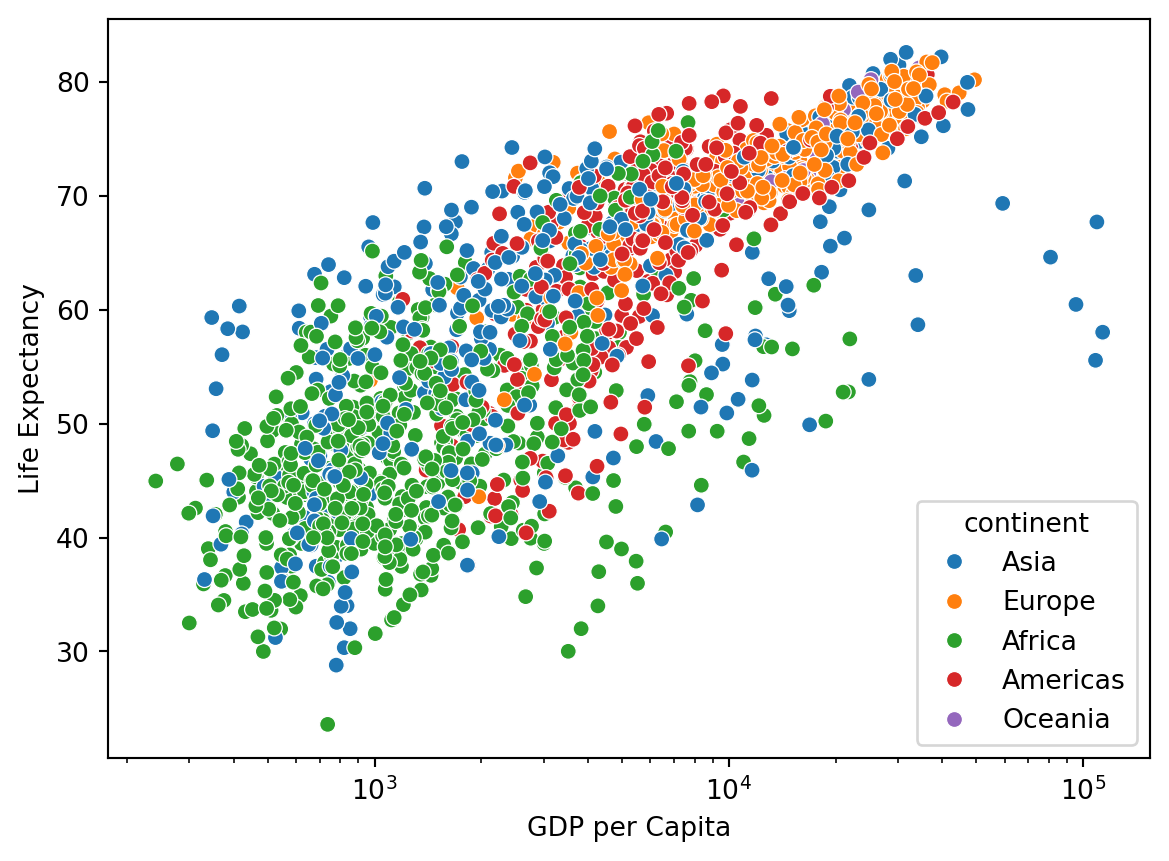
Take a look at the relationship between GDP per Capita and Life Expectancy:
sns.scatterplot(data=df, x="gdpPercap", y="lifeExp", hue="continent").set(
    xscale="log", ylabel="Life Expectancy", xlabel="GDP per Capita"
)
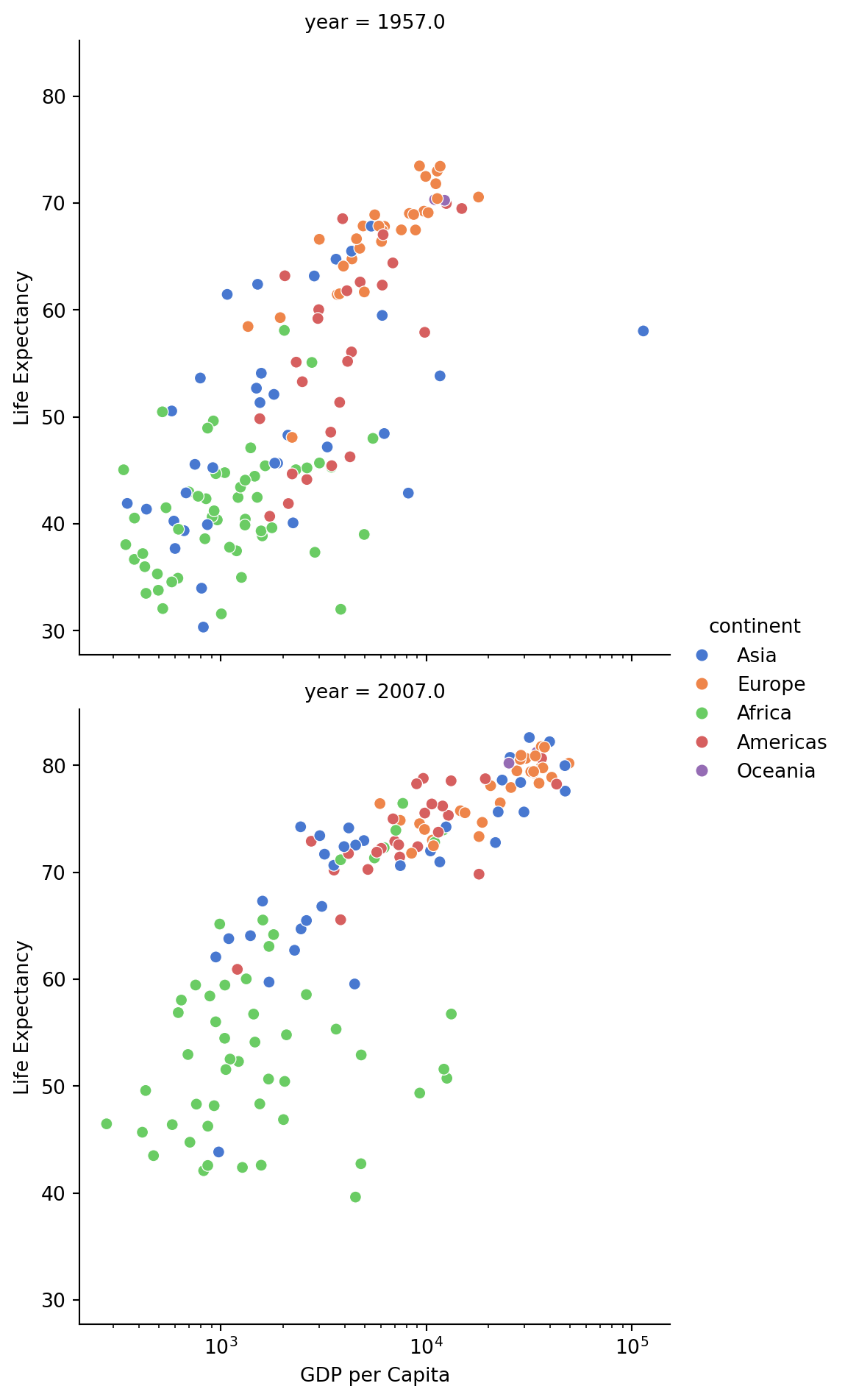
Separate the data by year, focusing on 1957 and 2007:
sns.relplot(
    data=df.where(df["year"].isin([1957, 2007])),
    x="gdpPercap",
    y="lifeExp",
    col="year",
    hue="continent",
    col_wrap=1,
    kind="scatter",
    palette="muted",
).set(xscale="log", ylabel="Life Expectancy", xlabel="GDP per Capita")