Navigating Files and Directories
Learn essential file system navigation using the Unix shell. Use commands for moving between directories, listing contents, and understanding absolute vs relative paths. Discover how to use tab completion to work efficiently in the command line.
This page is adapted from the Software Carpentry Shell Novice lesson, Copyright (c) The Carpentries. The original material is licensed under the Creative Commons Attribution 4.0 International License (CC BY 4.0).
Changes made: Content has been modified and expanded by Innovations for Poverty Action (IPA) to include IPA-specific examples, multi-shell syntax (Bash, PowerShell, NuShell), and context relevant to research data management.
Original citation: Gabriel A. Devenyi (Ed.), Gerard Capes (Ed.), Colin Morris (Ed.), Will Pitchers (Ed.), Greg Wilson, Gerard Capes, Gabriel A. Devenyi, Christina Koch, Raniere Silva, Ashwin Srinath, et al. (2019, July). swcarpentry/shell-novice: Software Carpentry: the UNIX shell, June 2019 (Version v2019.06.1). Zenodo. http://doi.org/10.5281/zenodo.3266823
- Explain the similarities and differences between a file and a directory.
- Translate an absolute path into a relative path and vice versa.
- Construct absolute and relative paths that identify specific files and directories.
- Use options and arguments to change the behaviour of a shell command.
- Demonstrate the use of tab completion and explain its advantages.
The part of the operating system responsible for managing files and directories is called the file system. It organizes our data into files, which hold information, and directories (also called ‘folders’), which hold files or other directories.
Several commands are frequently used to create, inspect, rename, and delete files and directories. To start exploring them, we’ll go to our open shell window.
First, let’s find out where we are by running a command called pwd (which stands for ‘print working directory’). Directories are like places. At any time while we are using the shell, we are in exactly one place called our current working directory. Commands mostly read and write files in the current working directory, i.e. ‘here’, so knowing where you are before running a command is important. pwd shows you where you are:
pwd/Users/amaraGet-Locationor using the alias:
pwdPath
----
C:\Users\amarapwdC:\Users\amaraHere, the computer’s response shows Amara’s home directory (the exact path format differs by operating system and shell).
To understand what a “home directory” is, let’s have a look at how the file system as a whole is organized. For the sake of this example, we’ll be illustrating the filesystem on our analyst Amara’s computer. After this illustration, you’ll be learning commands to explore your own filesystem, which will be constructed in a similar way, but not be exactly identical.
On Amara’s computer, the filesystem looks like this:
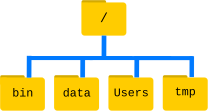
At the top is the root directory that holds everything else. We refer to it using a slash character, /, on its own; this character is the “root” of the entire file system.
Key Points
- The file system is responsible for managing information on the disk.
- Information is stored in files, which are stored in directories (folders).
- Directories can also store other directories, which then form a directory tree.
pwd(orGet-Locationin PowerShell) prints the user’s current working directory.ls [path](orGet-ChildItemin PowerShell) prints a listing of a specific file or directory.cd [path](orSet-Locationin PowerShell) changes the current working directory.- Most commands take options that begin with a single
-(Bash/NuShell) or-with full parameter names (PowerShell). - Directory names in a path are separated with
/on Unix/macOS, but\on Windows (though PowerShell and NuShell accept both). /on its own is the root directory on Unix; on Windows, each drive has its own root (e.g.,C:\).- An absolute path specifies a location from the root of the file system.
- A relative path specifies a location starting from the current location.
.on its own means ‘the current directory’;..means ‘the directory above the current one’.