Pull Requests
Learn how to create and manage pull requests on GitHub to propose changes, collaborate with others, and merge contributions into the main codebase safely.
This tutorial modifies content from Jenna Jordan’s Intro to Git & GitHub (Speedrun edition), which draws from the Software Carpentry Version Control with Git lesson, the Carpentries Incubator Version Control with Git lesson, and the Library Carpentry Introduction to Git lesson. Copyright (c) The Carpentries. The original material is licensed under the Creative Commons Attribution 4.0 International License (CC BY 4.0).
Changes made: Content has been modified and expanded by Innovations for Poverty Action (IPA) to include IPA-specific examples.
- Define the terms fork, clone, origin, remote, upstream
- Understand how to make a pull request and what they are useful for
Pull requests are a great way to collaborate with others using github. Instead of making changes directly to a repository you can suggest changes to a repo. This can be useful if you don’t have permission to modify a repository directly or you want someone else to review your changes.
On GitHub, in your multiverse repo, click on the “Pull Requests” tab.
Then click “New pull request”. Alternatively, GitHub will see your new branch with recent changes and will prompt you to “Compare & pull request”. Click this button to also be taken to the new pull request page.
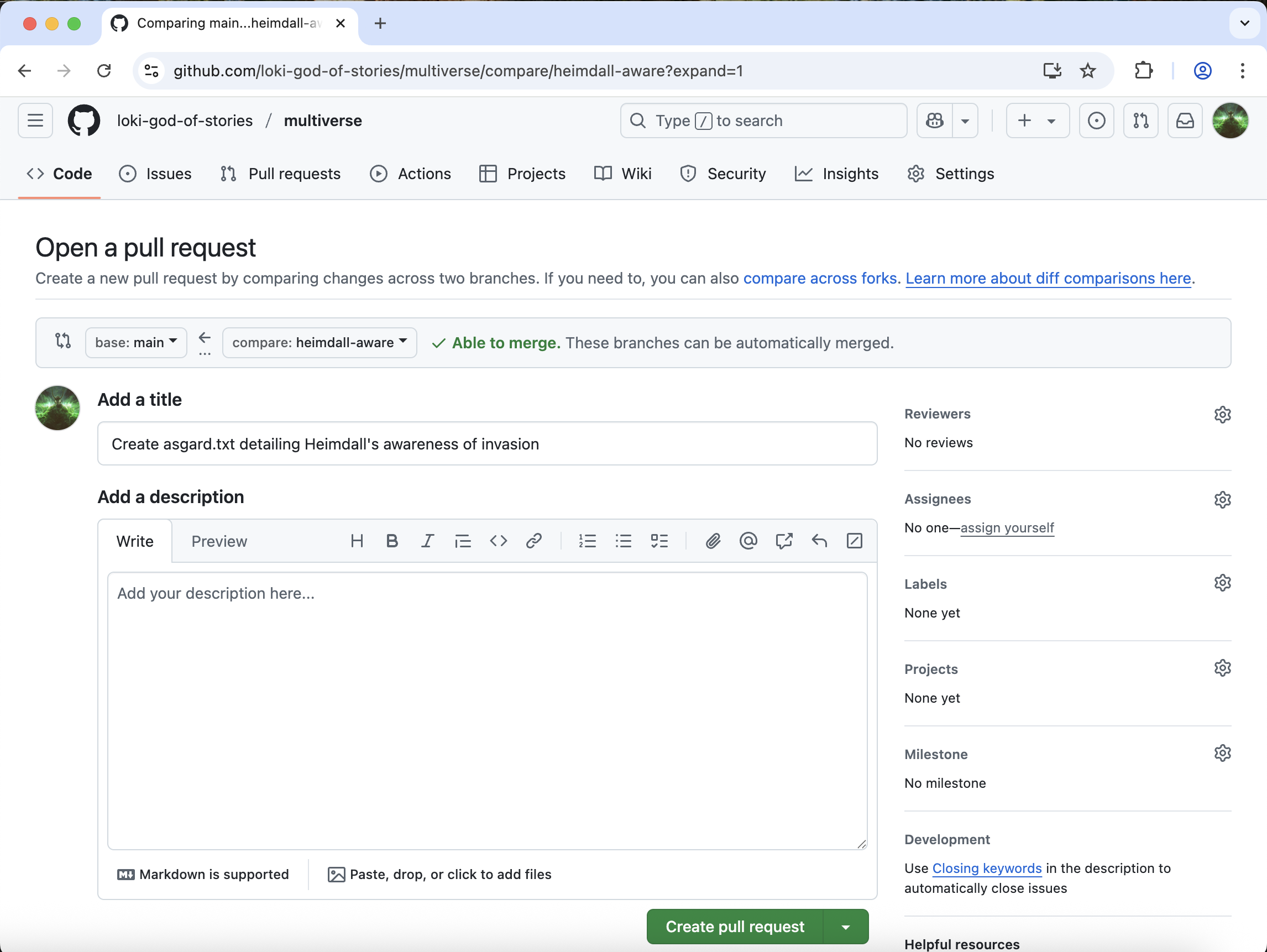
Make sure that the “base” branch is main and the “compare” branch is heimdall-aware.
Next, we need to give our PR a title. By default, your PR will get the title from your last commit. We can leave this as is.
Click “Create pull request”.
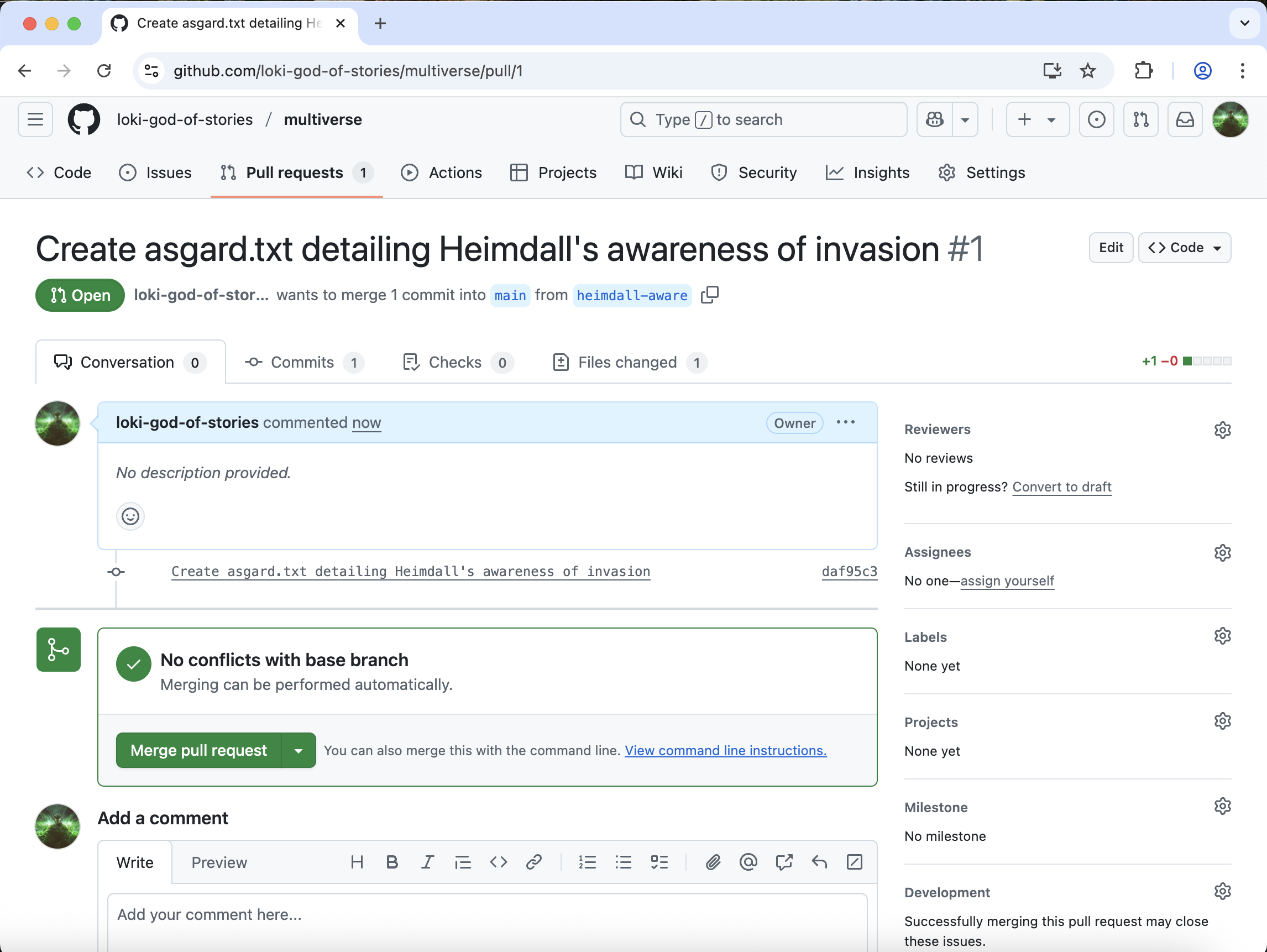
Your multiverse repo should now have 1 pull request. This is the phase where you would normally request a reviewer, who can leave comments on your code. In repos that you do not own, your PR will need to be approved by a codeowner before you can merge it. Since you are the codeowner, we can go ahead and click “Merge pull request”. Confirm & complete the merge.
Go back to the “Code” tab and make sure you are on the “main” branch. You should now see an “asgard.txt” file.
Let’s go back to VS Code. Checkout the main branch, and look at the files and history:
git checkout main
git log --oneline
2f2d364 (HEAD -> main, origin/main, origin/HEAD) Record formation of Gran Colombia
ee67c8b Implement counterattack strategy
9b26458 Start story for New Asgard in earth.txt
f537d84 Initial commitThe analysis file is not on “main” yet. This is because we need to first pull the changes we made with the Pull Request from the remote repository.
git pullremote: Enumerating objects: 1, done.
remote: Counting objects: 100% (1/1), done.
remote: Total 1 (delta 0), reused 0 (delta 0), pack-reused 0 (from 0)
Unpacking objects: 100% (1/1), 952 bytes | 476.00 KiB/s, done.
From https://github.com/simon-bolivar-historian/multiverse
2f2d364..976b48e main -> origin/main
Updating 2f2d364..976b48e
Fast-forward
asgard.txt | 1 +
1 file changed, 1 insertion(+)
create mode 100644 asgard.txtgit log --oneline976b48e (HEAD -> main, origin/main, origin/HEAD) Merge pull request #1 from simon-bolivar-historian/heimdall-aware
daf95c3 (origin/heimdall-aware, heimdall-aware) Create asgard.txt detailing Heimdall's awareness of invasion
2f2d364 Record formation of Gran Colombia
ee67c8b Implement counterattack strategy
9b26458 Start story for New Asgard in earth.txt
f537d84 Initial commitNow our main branch is up to date.
Deleting branches
Now that we’ve merged the heimdall-aware into main, these changes exist in both branches. This could be confusing in the future if we stumble upon the heimdall-aware branch again.
We can delete our old branches so as to avoid this confusion later. We can do so by adding the -d flag to the git branch command.
git branch -d heimdall-awareDeleted branch heimdall-aware (was daf95c3).And because we don’t want to keep the changes in the heimdall-blind branch, we can delete the heimdall-blind branch as well
git branch -d heimdall-blinderror: The branch 'heimdall-blind' is not fully merged.
If you are sure you want to delete it, run 'git branch -D heimdall-blind'.Since we’ve never merged the changes from the heimdall-blind branch, git warns us about deleting them and tells us to use the -D flag instead.
Since we really want to delete this branch we will go ahead and do so.
git branch -D heimdall-blindDeleted branch heimdall-blind (was 59b9bab).Finally, we can also delete the heimdall-aware branch on GitHub. Click on “Branches”, and to delete the heimdall-aware branch click the trashcan icon to the right of the branch name.
Key Points
- Pull requests suggest changes to repos where you don’t have privileges