Pushing changes to GitHub
Learn how to synchronize your local Git repository with a remote repository on GitHub by pushing and pulling changes, enabling collaboration and backup.
This tutorial modifies content from Jenna Jordan’s Intro to Git & GitHub (Speedrun edition), which draws from the Software Carpentry Version Control with Git lesson, the Carpentries Incubator Version Control with Git lesson, and the Library Carpentry Introduction to Git lesson. Copyright (c) The Carpentries. The original material is licensed under the Creative Commons Attribution 4.0 International License (CC BY 4.0).
Changes made: Content has been modified and expanded by Innovations for Poverty Action (IPA) to include IPA-specific examples.
- Push to or pull from a remote repository
Local vs Remote Repositories
Version control really comes into its own when we begin to collaborate with other people. We already have most of the machinery we need to do this; the only thing missing is to copy changes from one repository to another.
Systems like Git allow us to move work between any two repositories. In practice, though, it’s easiest to use one copy as a central hub, and to keep it on the web rather than on someone’s laptop. Most programmers use hosting services like GitHub, Bitbucket or GitLab to hold those main copies; we’re using GitHub.
Before we share our changes, let’s first look at our multiverse repo on GitHub.
Even though we have made changes to our local copy of multiverse, the remote copy on GitHub still only has the README file. This is because we have not yet “pushed” our changes (or commits) to the remote repository.
Note that our local repository still contains our earlier work on campaigns.txt, but the remote repository on GitHub only contains the README file.
Because we created our repo on GitHub first and then cloned it to our local computer, the two repositories are already connected. If we had instead created the local repo first, then the remote repo on GitHub, we would need to manually connect the two repos, with a command like:
git remote add origin git@github.com:simon-bolivar-historian/multiverse.gitorigin is a local name used to refer to the remote repository. It could be called anything, but origin is a convention that is often used by default in git and GitHub, so it’s helpful to stick with this unless there’s a reason not to.
Instead, we can simply verify that the two repositories are connected with the command:
git remote -vorigin https://github.com/simon-bolivar-historian/multiverse.git (fetch)
origin https://github.com/simon-bolivar-historian/multiverse.git (push)Pushing local changes to GitHub
This command will push the changes from our local repository to the repository on GitHub:
git push origin mainEnumerating objects: 10, done.
Counting objects: 100% (10/10), done.
Delta compression using up to 8 threads
Compressing objects: 100% (8/8), done.
Writing objects: 100% (9/9), 992 bytes | 992.00 KiB/s, done.
Total 9 (delta 1), reused 0 (delta 0), pack-reused 0
remote: Resolving deltas: 100% (1/1), done.
To https://github.com/simon-bolivar-historian/multiverse.git
f537d84..2f2d364 main -> mainWe can pull changes from the remote repository to the local one as well:
git pull origin mainFrom https://github.com/simon-bolivar-historian/multiverse
* branch main -> FETCH_HEAD
Already up to date.Pulling has no effect in this case because the two repositories are already synchronized. If someone else had pushed some changes to the repository on GitHub, though, this command would download them to our local repository.
Let’s verify that our changes made it to GitHub: go to your browser window with the GitHub repo and refresh the page.
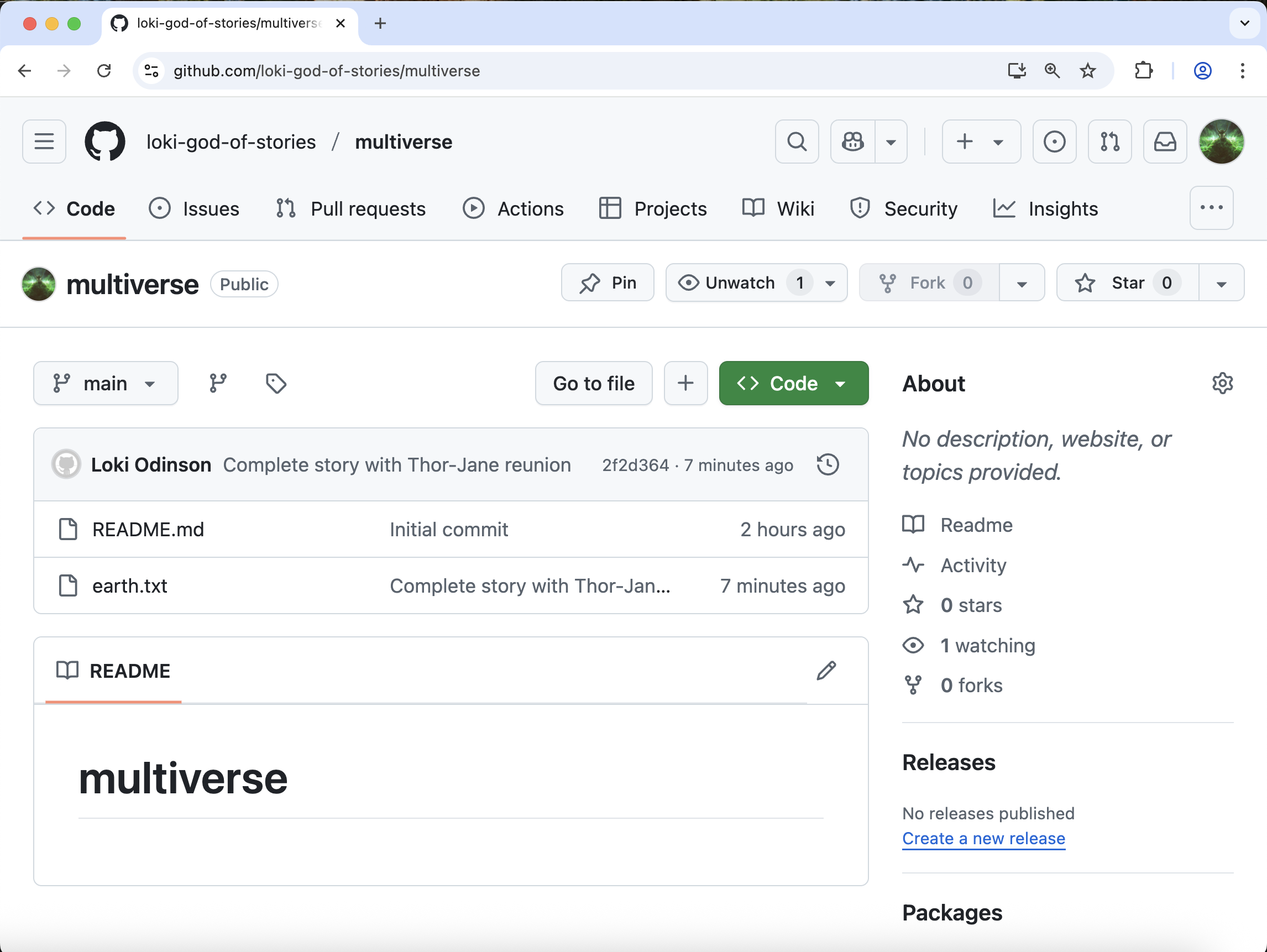
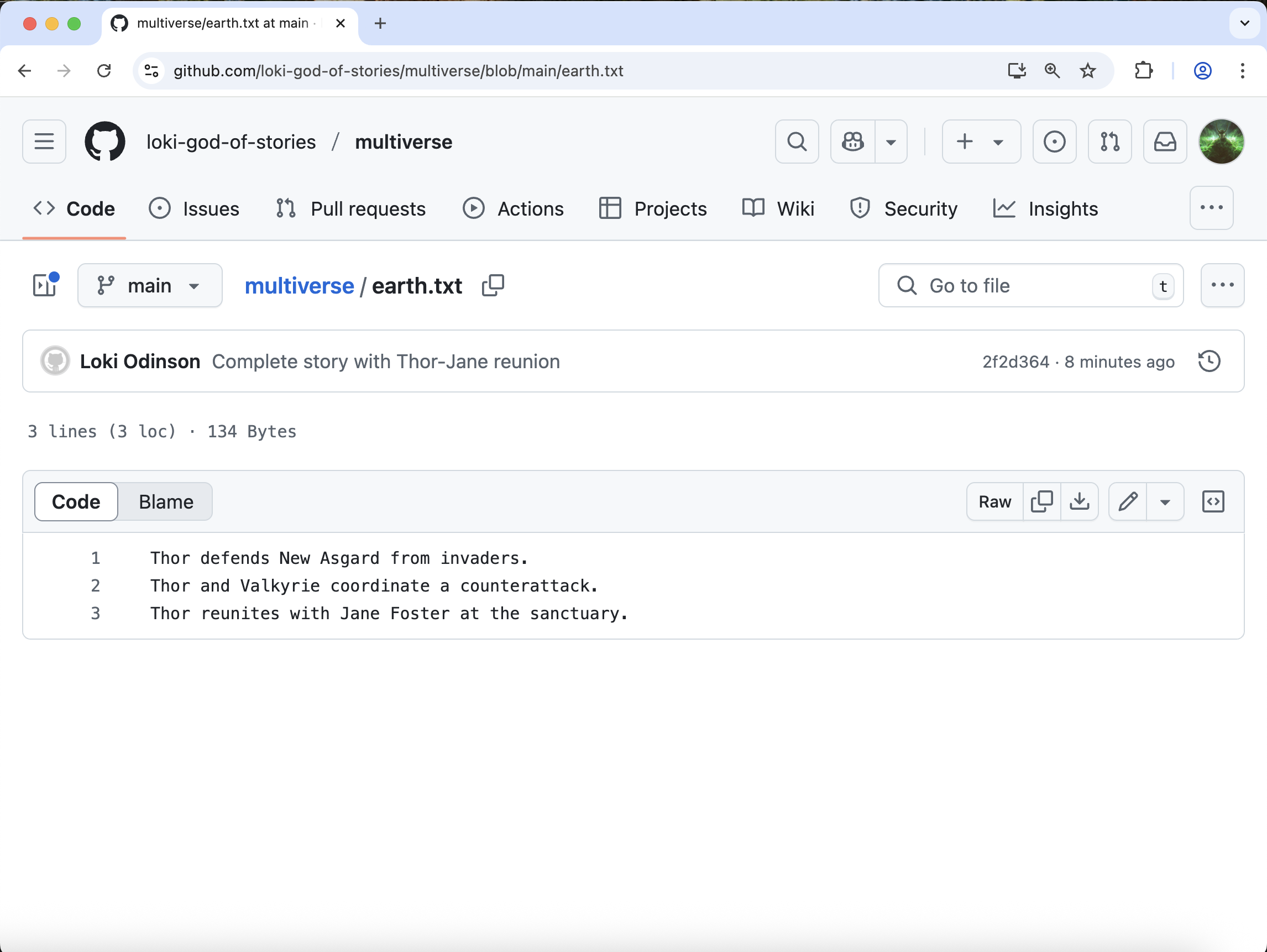
You should now see the campaigns.txt file. Click on the file, and you can see the contents of the file are the same as in VS Code.
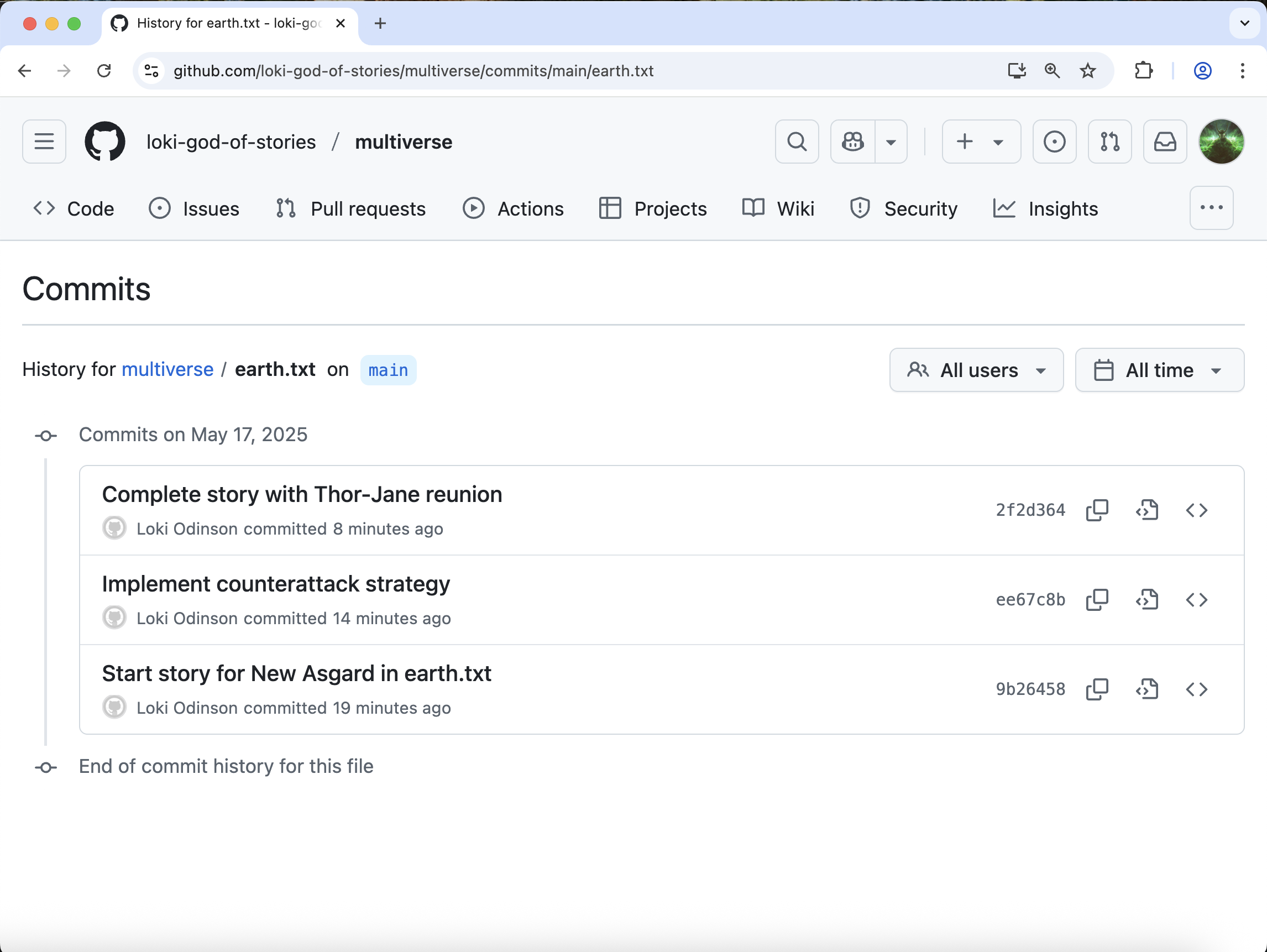
Now click on the “History” link. You should see each commit made to the file, even though we only pushed once.
Key Points
- A local Git repository can be connected to one or more remote repositories
git pushcopies changes from a local repository to a remote repositorygit pullcopies changes from a remote repository to a local repository