Git
Learn Git version control through hands-on tutorials, from basic concepts to advanced workflows. Includes installation guides, command reference, and best practices for collaborative development.
What is Version Control?
Version control is a name used for software which can help you record changes you make to the files in a directory on your computer. Version control software and tools (such as Git and Subversion/SVN) are often associated with software development, and increasingly, they are being used to collaborate in research and academic environments. Version control systems work best with plain text files such as documents or computer code, but modern version control systems can be used to track changes in most types of file.
At its most basic level, version control software helps us register and track sets of changes made to files on our computer. We can then reason about and share those changes with others. As we build up sets of changes over time, we begin to see some benefits.
Benefits of Version Control
- Collaboration - Version control allows us to define formalized ways we can work together and share writing and code. For example merging together sets of changes from different parties enables co-creation of documents and software across distributed teams.
- Versioning - Having a robust and rigorous log of changes to a file, without renaming files (v1, v2, final_copy)
- Rolling Back - Version control allows us to quickly undo a set of changes. This can be useful when new writing or new additions to code introduce problems.
- Understanding - Version control can help you understand how the code or writing came to be, who wrote or contributed particular parts, and who you might ask to help understand it better.
- Backup - While not meant to be a backup solution, using version control systems mean that your code and writing can be stored on multiple other computers.
There are many more reasons to use version control, and we’ll explore some of these in the library context, but first let’s learn a bit about a popular version control tool called Git.
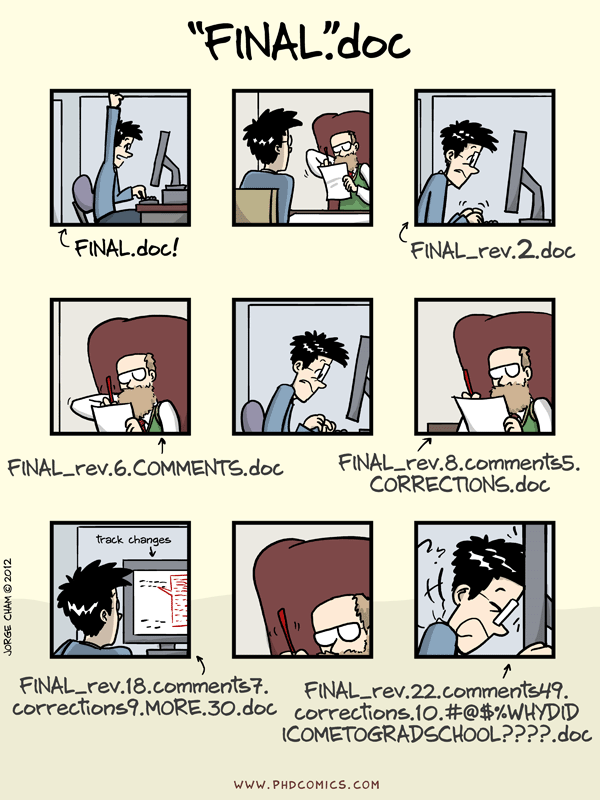
“Piled Higher and Deeper” by Jorge Cham, http://www.phdcomics.com
What are Git and GitHub?
We often hear the terms Git and GitHub used interchangeably but they are slightly different things.
Git is one of the most widely used version control systems in the world. It is a free, open source tool that can be downloaded to your local machine and used for logging all changes made to a group of designated computer files (referred to as a “git repository” or “repo” for short) over time. It can be used to control file versions locally by you alone on your computer, but is perhaps most powerful when employed to coordinate simultaneous work on a group of files shared among distributed groups of people.
Rather than emailing documents with tracked changes and some comments and renaming different versions of files (example.txt, exampleV2.txt, exampleV3.txt) to differentiate them, we can use Git to save (or in Git parlance, “commit”) all that information with the document itself. This makes it easy to get an overview of all changes made to a file over time by looking at a log of all the changes that have been made. And all earlier versions of each file still remain in their original form: they are not overwritten, should we ever wish to “roll back” to them.
Git was originally developed to help software developers work collaboratively on software projects, but it can be and is used for managing revisions to any file type on a computer system, including text documents and spreadsheets. Once installed, interaction with Git is done through the Command Prompt in Windows, or the Terminal on Mac/Linux. Since Word documents contain special formatting, Git unfortunately cannot version control those, nor can it version control PDFs, though both file types can be stored in Git repositories.
GitHub on the other hand is a popular website for hosting and sharing Git repositories remotely. It offers a web interface and provides functionality and a mixture of both free and paid services for working with such repositories. The majority of the content that GitHub hosts is open source software, though increasingly it is being used for other projects such as open access journals (e.g. Journal of Open Source Software), blogs, and regularly updated text books. In addition to GitHub, there are other Git hosting services that offer many similar features such as GitLab, Bitbucket and Gitee.
Visualizing Git
Version control systems start with a base version of the document and then save just the changes you made at each step of the way. You can think of it as a tape: if you rewind the tape and start at the base document, then you can play back each change and end up with your latest version.
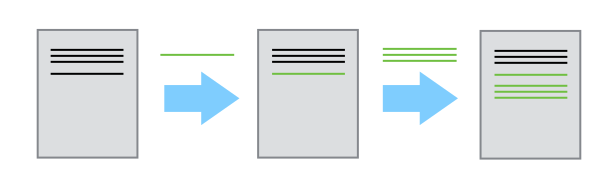
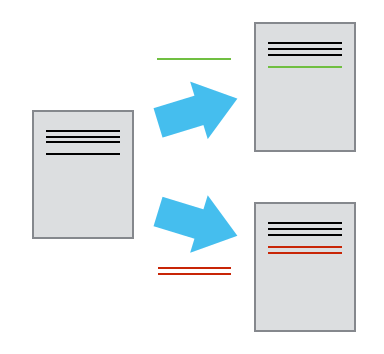
Once you think of changes as separate from the document itself, you can then think about “playing back” different sets of changes onto the base document and getting different versions of the document. For example, two users can make independent sets of changes based on the same document.
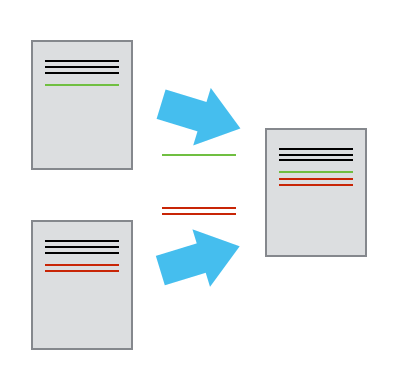
Unless there are conflicts, you can even play two sets of changes onto the same base document.
Getting Started
Ready to start learning Git? Our comprehensive tutorial series will take you from installation to advanced workflows.
This page modifies content from the Software Carpentry Version Control with Git lesson, Jenna Jordan’s Intro to Git & GitHub (Speedrun edition), the Carpentries Incubator Version Control with Git lesson, and the Library Carpentry Introduction to Git lesson.
- Version control helps track changes to files and projects
- Git and GitHub are not the same
- Git commands are written as
git verb options
Click on the image below to watch a video with an introduction to Git for beginners:

Tutorial Series
Complete these lessons in order for a structured learning experience:
- Setup Instructions - Install Git, VS Code, and connect to GitHub
- Create a Repository - Create and clone your first GitHub repository
- Configure Git - Set up your Git identity and preferences
- Track Changes - Learn the modify-add-commit workflow
- Push Changes - Sync your local work with GitHub
- Working with Branches - Create and manage parallel development paths
- Pull Requests - Collaborate through code review
- Resolve Conflicts - Handle merge conflicts confidently
Quick Reference
Click on the image below to watch a video on basic Git commands:
Essential Git Commands
git init
Create a new Git repository
git initgit clone
Clone a repository into a new directory For example, to clone the IPA handbook repository:
# If using HTTPS
git clone https://github.com/PovertyAction/ipa-data-tech-handbook.git

# If using SSH
git clone git@github.com:PovertyAction/ipa-data-tech-handbook.git
git checkout
Branches are used to develop new code or modify existing code such that the “main” code is not affected until the new code is ready. To create a new branch, use:
git checkout -b new-branch-nameThis checks out a new branch called new-branch-name. To switch back to the main branch, use:
git checkout mainTo checkout a branch from the remote repository, use:
git fetch origin
git checkout --track origin/remote-branch-name
To push a branch to the remote repository, use:
git push origin new-branch-nameTo delete a branch, use:
git branch -d new-branch-nameList all local branches:
git branch --listgit add
Add files that have changed and are ready to be committed to the staging area. To add a file, file_name.md, use:
git add file_name.mdgit commit
Commit changes to the checked out branch.
Good commit messages follow the following format:
git commit -m "<type>: <description>"To commit changes with a message, use:
git commit -m "feat: adding new feature to the codebase"git push
Send changes to the remote repository. To push any commits to remote use the following:
git push origin new-branch-nameIf you are pushing a new branch to the remote repository, use:
git push --set-upstream origin new-branch-nameConsider adding the Conventional Commits extension to your VS Code to help you write good commit messages.
Best Practices
- Always include a README file in your repository and keep it up to date with key information that anyone who visits your repository should know for using, replicating, or contributing to code in the repository.
- Use branches to develop new features or fix bugs. This helps to keep the main branch clean and stable.
- Write clear and concise commit messages. A good commit message should describe what changes were made and why they were made. Refer to Conventional Commits for good practice in writing commit messages.
- Push changes to the remote repository frequently. This helps to keep your codebase up to date and allows others to collaborate with you.
- Use pull requests to propose changes to the main branch. Try to keep the pull request small such that there is a manageable amount of code to review.
Additional Learning Resources
- GitHub’s YouTube Git for Beginners
- GitHub’s Git Cheat Sheet
- git - the simple guide
- Git Best Practices
- Happy Git with R
- Visual Git Guide
- Visualizing Git with D3